
The delete button on your MacBook: not what you think
The delete button on your MacBook doesn't do what you think it does. Windows users tear their hair out when they switch. Text disappears the wrong way. Files refuse to disappear. You frantically press key combinations that don't do anything, even though you have AirPods in and no one hears your frustrated groans.
But here's the crazy thing: Apple deliberately designed it this way . The delete key on a MacBook is actually a backspace key in disguise. And once you figure this out, you'll discover a whole arsenal of hidden features that double your productivity. From cleverly deleting entire words to tidying your desk without a single click. Just as the right accessories transform your MacBook experience, this knowledge completely changes how you work.
Useful links
The fundamental difference between Mac and Windows
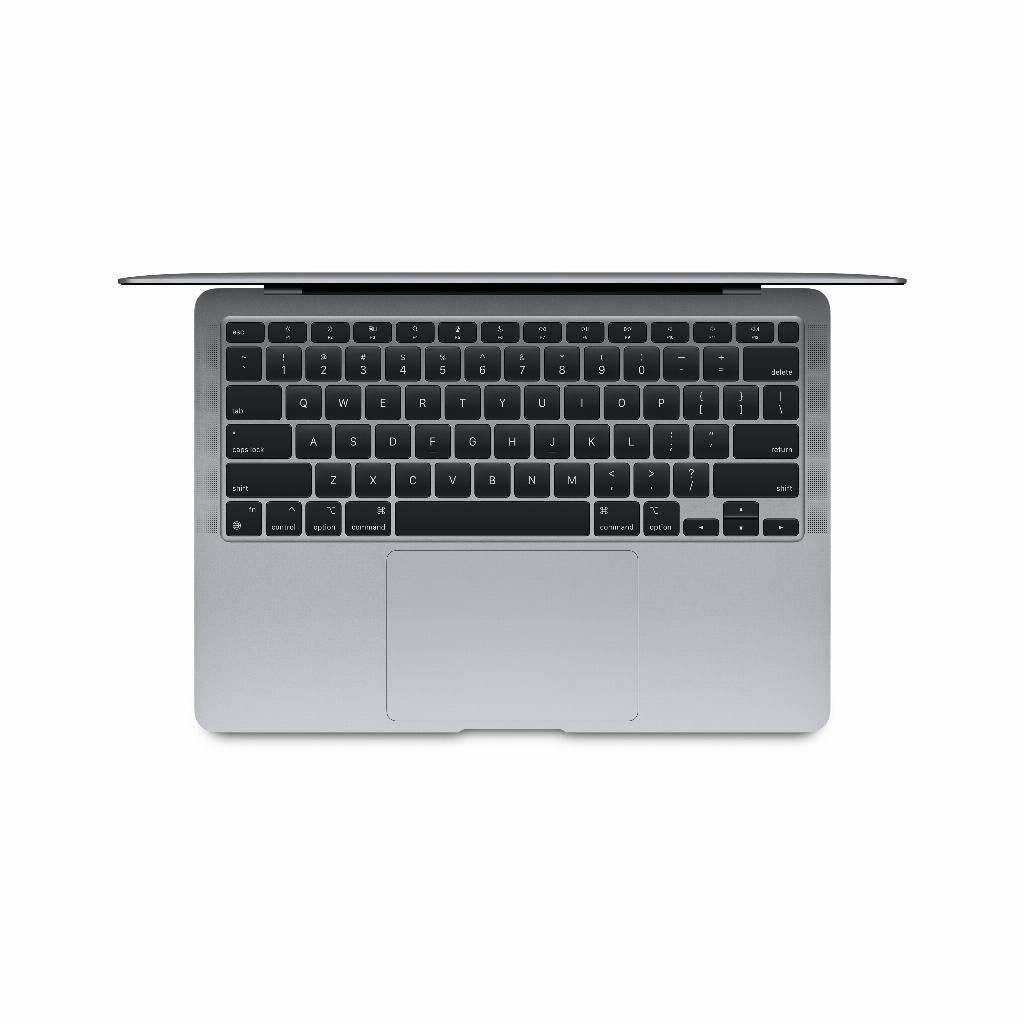
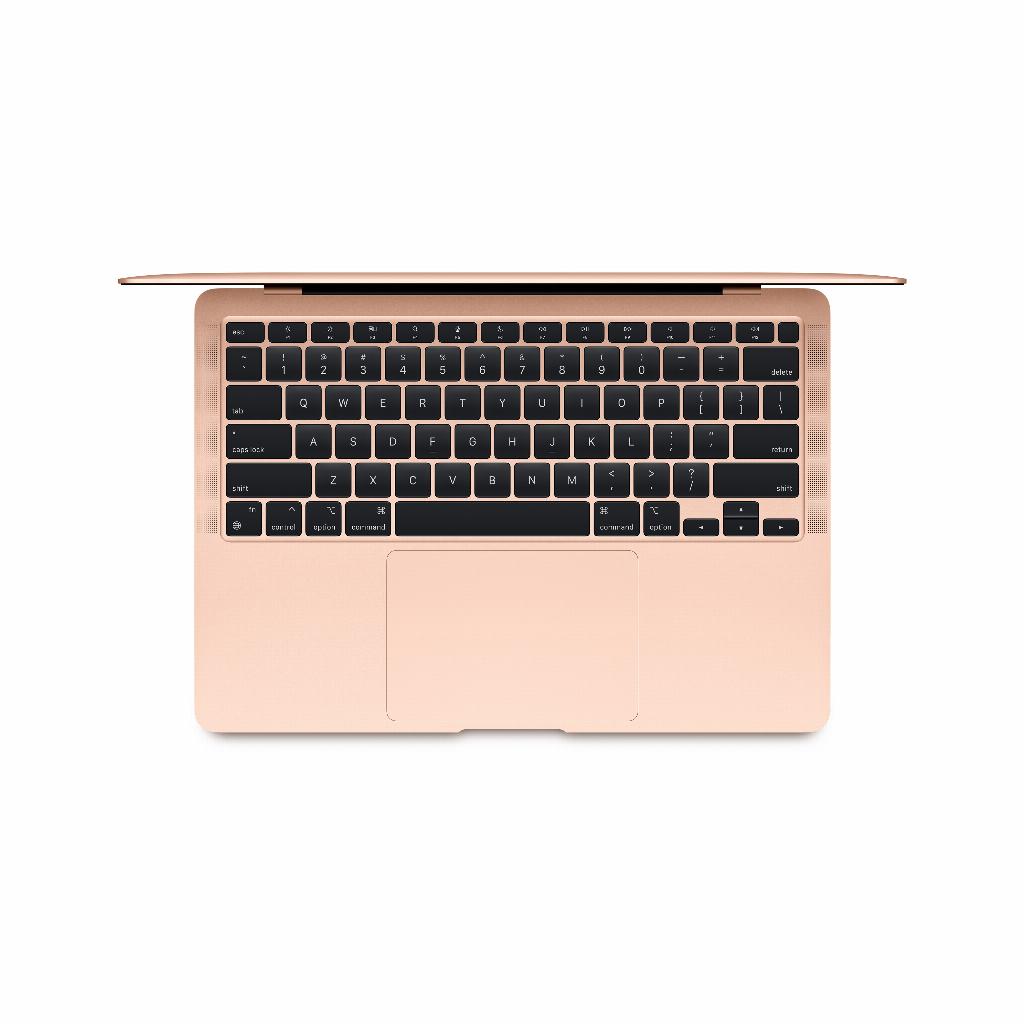
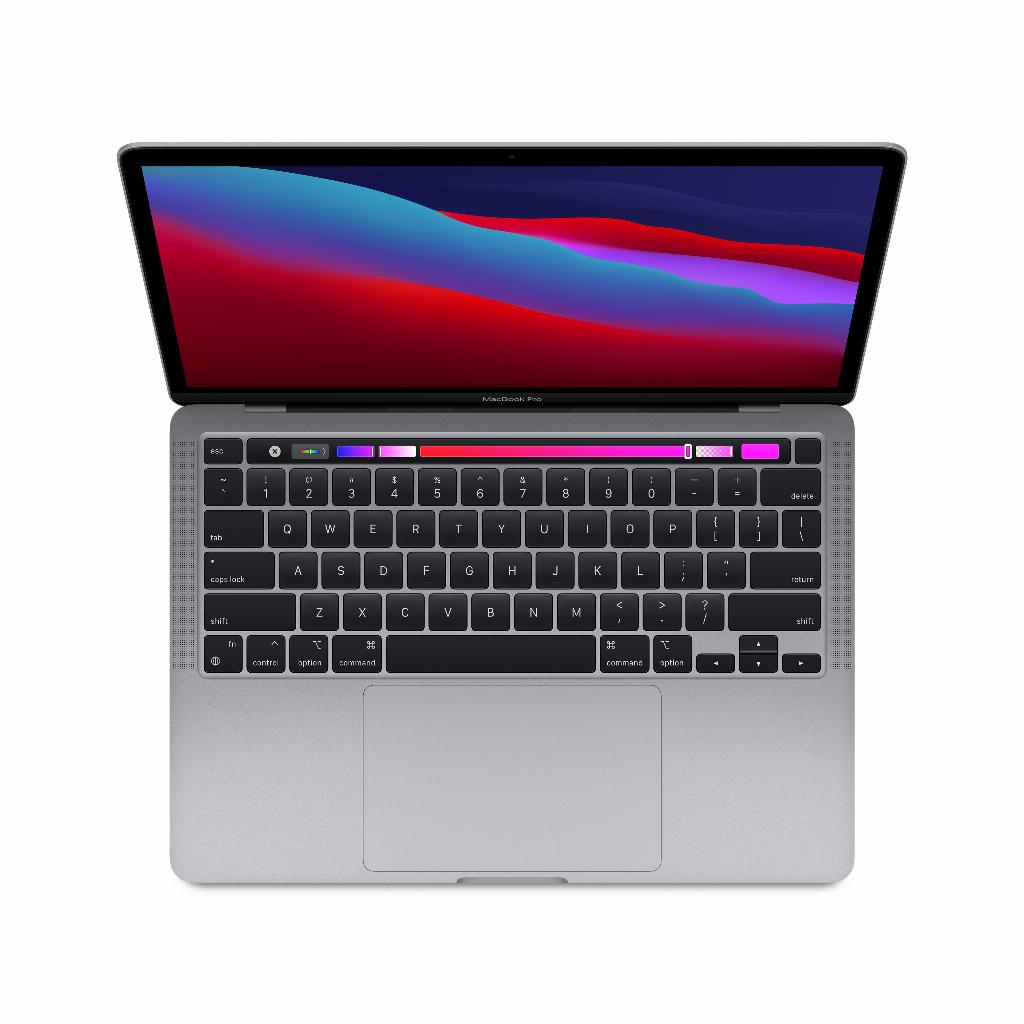
The delete key on your MacBook is officially called "delete," but it acts like a backspace key. This means text disappears to the left, not to the right as Windows users are used to. Apple calls this "backward delete." To delete to the right (forward delete), press fn + delete.
This difference arose in the early days of personal computing. Apple deliberately chose this approach because it feels more natural when typing. After all, you usually correct what you've just typed, not what's coming next.
Essential key combinations for text editing
The delete key becomes truly powerful when you combine it with other keys:
- Option + delete: deletes the entire word to the left of the cursor
- Command + Delete: Deletes the entire line from the cursor to the left
- Fn + delete: deletes text to the right (forward delete)
- Fn + option + delete: deletes the word to the right of the cursor
These combinations work in virtually any application on your Mac, whether you're working in Pages, writing an email, or coding in Xcode.
Delete files without a mouse
In Finder, the Delete button has special functions. Select a file and press:
- Command + Delete: Moves the file to the trash
- Option + Command + Delete: Empty the trash immediately (with warning)
- Shift + Option + Command + Delete: Empties the trash without warning
These shortcuts save time, especially when you need to clean up multiple files. Select them with Command + Click, then use Command + Delete to delete them all at once.
Application-specific tricks
Safari and Chrome
In browsers, the delete button has additional functions. Command + delete takes you back to the previous page. This is faster than clicking the back button. In the address bar, option + delete erases entire sections of the URL, useful for editing long web addresses.
In the Mail app, Command + Delete deletes selected emails instantly. Without this combination, you'll need to press Delete first and then confirm. To permanently delete them (without going to the trash), use Option + Command + Delete.
Terminal
For developers and power users: In Terminal, Control+U deletes the entire line from the cursor to the left. Control+K does the same to the right. These Unix shortcuts work in addition to the standard Mac shortcuts.
Troubleshooting the Delete Button
Is your delete button not working as expected? Here are the most common causes:
Incorrect keyboard layout: Check System Preferences > Keyboard to make sure you've set the correct language. An incorrect setting can cause keys to respond differently.
Stuck key: Crumbs or dust under the key can cause problems. Tilt your MacBook at a 75-degree angle and gently blow compressed air under the key. Don't use a vacuum cleaner; static electricity can cause damage.
Software conflict: Some apps use key combinations. Check the preferences of recently installed software to see if any shortcuts are set there that conflict.
Adapting to your working style
You can customize the delete key's behavior with tools like Karabiner-Elements. This free software lets you redefine keys. Useful if you frequently switch between Mac and Windows, or if you want to optimize specific workflows.
For word processing, TextExpander is a valuable tool. It works in conjunction with the Delete key to quickly replace or remove text fragments. Type an abbreviation, press Delete, and the full text appears.
Tips for Windows switchers
Switching from Windows to Mac? These tips will make the transition easier:
- Put a small sticker with 'backspace' on the delete button as a reminder
- Practice the key combinations in a text document for five minutes every day
- Install an app like CheatSheet that shows all available shortcuts when you hold down command
After about two weeks of use, the new behavior becomes second nature. Most users ultimately find the Mac system more logical, especially for intensive text-based work.
Practical examples
Suppose you're writing a report and need to restructure a paragraph. Instead of selecting word by word and pressing delete, you use option + delete to remove entire words. If you find a typo in a URL, you use the same combination to quickly remove the incorrect part.
When cleaning out your Downloads folder, select all the old files with Command+A, deselect what you want to keep with Command+click, and then press Command+Delete. Everything goes to the Trash in one go.
The delete key on your MacBook is much more than just a simple delete key. It's a versatile tool that, once mastered, significantly increases your productivity. Whether you're writing documents, managing files, or browsing the web, knowing this key and its combinations makes the difference between frustrated typing and efficient work.
More than a quirky design choice
The delete key on your MacBook is more than just a quirky design choice by Apple. It's a well-thought-out system that, once you understand the logic, will speed up your workflow. From cleverly fixing typos to tidying your desk without a single click, the right key combinations make all the difference.
Windows users need a little time to get used to it, but afterward, they often find the Mac approach feels more natural. Just as the right refurbished MacBook perfectly suits your work style, this "wrong" delete button eventually becomes just right.