
Why Keyboard Shortcuts Dramatically Improve Your Mac Experience
You click. And click. And click again. Every day, you navigate menus on your Mac with your mouse. For taking a screenshot , for copying, for everything, really. You know keyboard shortcuts exist, but learning them? That's for later. Yet, this is precisely why your productivity is stalling.
Because here's what no one tells you: the real time savings from keyboard shortcuts aren't in those few seconds per action. It's in maintaining your flow . No more interruptions to reach for the mouse. No more searching for that one option in the menu. Your fingers stay on the keyboard, your mind on your work.
Whether you 've just purchased a refurbished MacBook or have been working with macOS for years, these 22 shortcuts, plus the ability to create your own combinations, will change the way you work. Forever.
Useful links
- How to restart your MacBook - step-by-step guide
- Accessories for your Mac
- Refurbished MacBook collection
The Basics: Essential Shortcuts You Can Use Right Away
Let's start with the fundamental key combinations that will speed up your daily work. These shortcuts form the backbone of working efficiently on macOS.
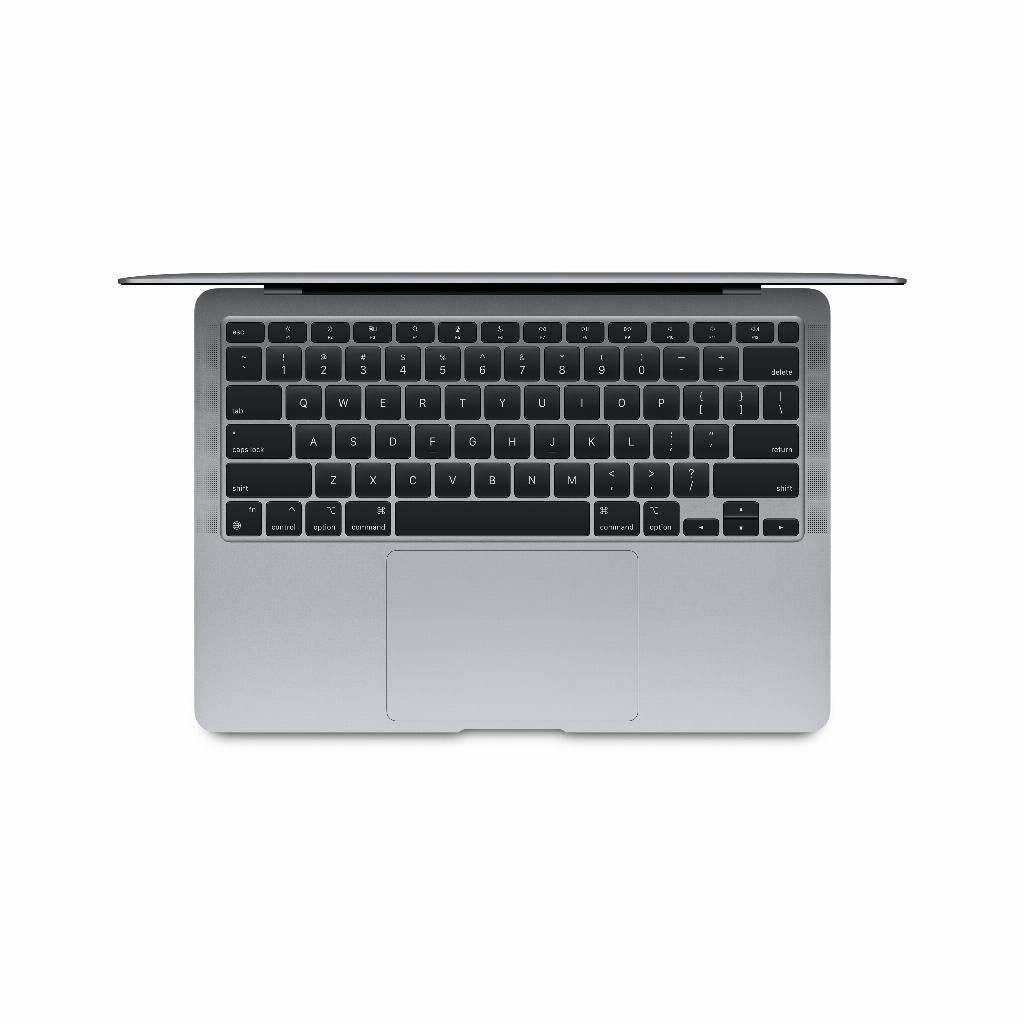
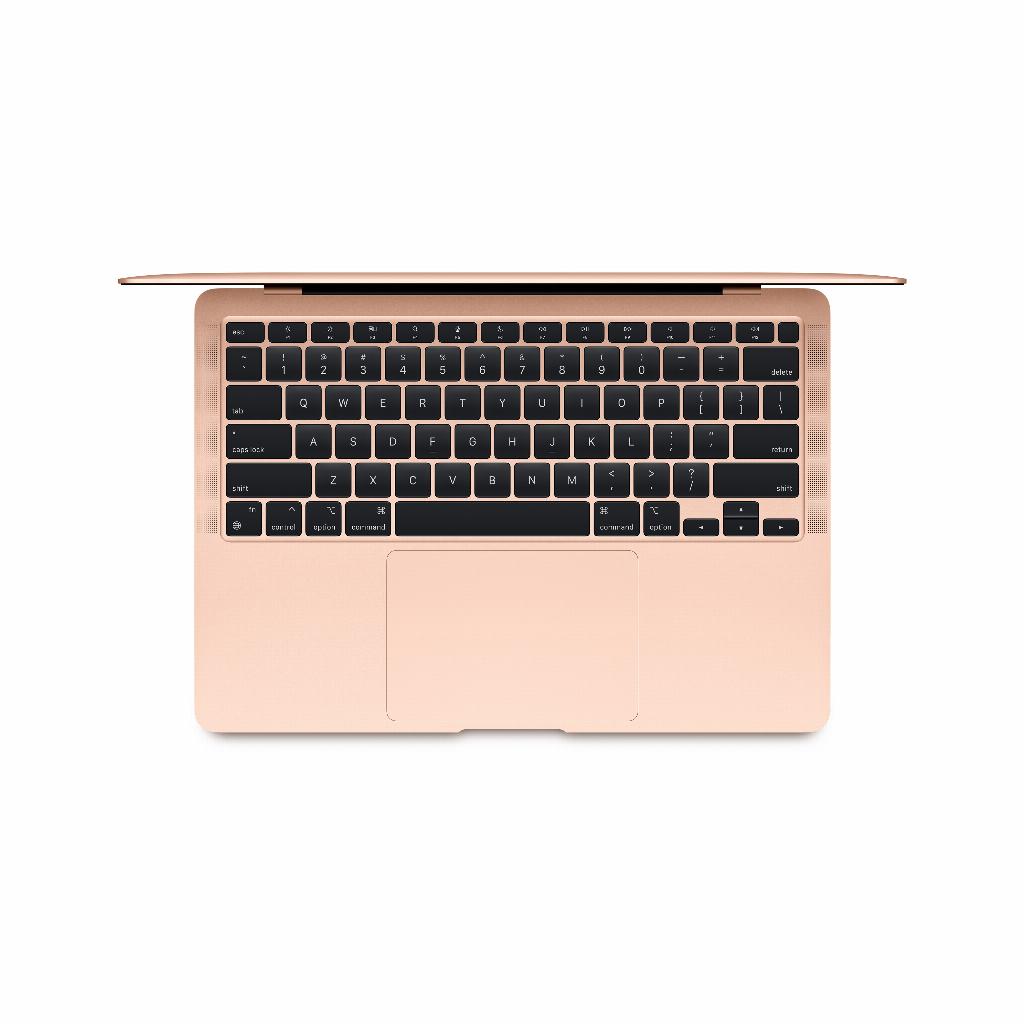
Everyone probably knows the familiar triangle cmd + X , cmd + C and cmd + V for cut, copy and paste. But did you know that cmd + A for selecting all content often saves you several mouse clicks? This is a time saver, especially when working with long documents or reorganizing files.
For document management cmd + S (save) and cmd + P (print) are essential. They may seem simple, but the habit of pressing cmd + S regularly prevents data loss in the event of unexpected crashes.
System and energy management without mouse clicks
You don't need to shut down or restart your Mac through the Apple menu. Pressing ctrl + opt + cmd + eject will perform a clean shutdown, giving you the opportunity to save any open documents first. To restart, use ctrl + cmd + eject —useful when your system is running slow or after installing updates.
You can activate sleep mode by pressing option/alt + cmd + aan-/uitknop . This is more energy-efficient than leaving your Mac on, while still allowing your work to remain immediately available. Just want to turn off the display? Use ctrl + shift + aan-/uitknop . Perfect for short breaks when you don't need full sleep mode.
For security ctrl + cmd + Q is essential: it instantly locks your screen. No more fiddling with password settings in System Preferences—one key combination and your data is safe when you step away.
Take screenshots without additional software
macOS's built-in screenshot features are more powerful than many users realize. Press shift + cmd + 3 to capture the entire screen. The image appears instantly on your desktop.
Even more useful is shift + cmd + 4 . This lets you select the precise area you want to capture. The crosshairs provide pixel-precise control, ideal for documentation or sharing specific information without distractions.
Window and application management for multitaskers
Switching between programs is done with cmd + tab (forward) or cmd + ~ (backward). These combinations keep your hands on the keyboard while navigating between tasks.
You can close windows with cmd + W , while option/alt + cmd + W closes all windows of the current application but keeps the program active. To completely quit an app, use cmd + Q – this frees up memory and keeps your system running smoothly.
You can activate full-screen mode by pressing ctrl + cmd + F in supported applications. This maximizes your workspace by hiding all distractions. This is especially valuable when working with documents or creative software.
Special characters and symbols
To type the euro sign, press option/alt + 2 . No more searching through character palettes. For the delete function familiar to Windows users, combine fn + backspace . This deletes characters to the right of the cursor instead of to the left.
Configure your own shortcuts
The real power of macOS lies in its customizability. You can define your own shortcuts via System Preferences > Keyboard > Shortcuts.
Navigate to "Keyboard shortcuts for programs" and click the plus sign. Enter the exact menu name of the function you want to link. In the "Keyboard shortcut" field, press the desired keys. Note: Choose combinations that don't already exist to avoid conflicts.
For specific applications like Safari, first select the program from the drop-down menu. This way, you can create a shortcut for "Show Developer Menu" or other frequently used functions that don't have a default shortcut.
Productivity tips for everyday use
The real time savings come from developing muscle memory. Start with five shortcuts that most improve your situation. Force yourself to use these instead of the mouse for a week. After that week, add five more.
Also consider using cmd + Mission Control (F3) to jump directly to the desktop. This is especially useful when you want to quickly find files on your desktop without minimizing all windows.
Consider your workflow. Which actions do you repeat most often? Analyze a typical workday and identify the menu options you repeatedly navigate to. These are perfect candidates for your own shortcuts.
Customizing shortcuts to your personal work style makes the difference between a Mac that works for you and one you struggle with. The initial investment of time pays off in increased efficiency and reduced frustration.
The investment that pays off every day
Learning keyboard shortcuts might feel like extra work at first, but it's an investment that pays off daily . Start small with the combinations that most speed up your specific workflow.
Whether you've just bought a refurbished MacBook or have been working with macOS for years, it's not about memorizing every possible keystroke. It's about creating a natural, fluid way of working that keeps your hands on the keyboard and your mind focused on the task.
Those few seconds saved per action? They add up to hours per month .