
The Problem With iCloud Drive That No One Tells You
You have three Apple devices. Different files on each. Chaos. You know how it is: that presentation is on your Mac, but you only have your iPhone with you. Or you're looking for that one photo that's somewhere on your iPad. Annoying.
But here's what no one tells you: most people are using iCloud Drive completely wrong. They see it as a kind of digital storage shed where they dump their junk. When all's said and done, it's a clever system that can streamline your workflow—if you know how. Whether you're streaming music with your AirPods or sharing documents through your accessories , it's all about the right setup.
Forget that standard 5GB and random folder structure. There are tricks Apple doesn't include in the manual.
Useful links
- Refurbished iPhone collection - sync effortlessly between devices
- Refurbished iPad collection - perfect for documents on the go
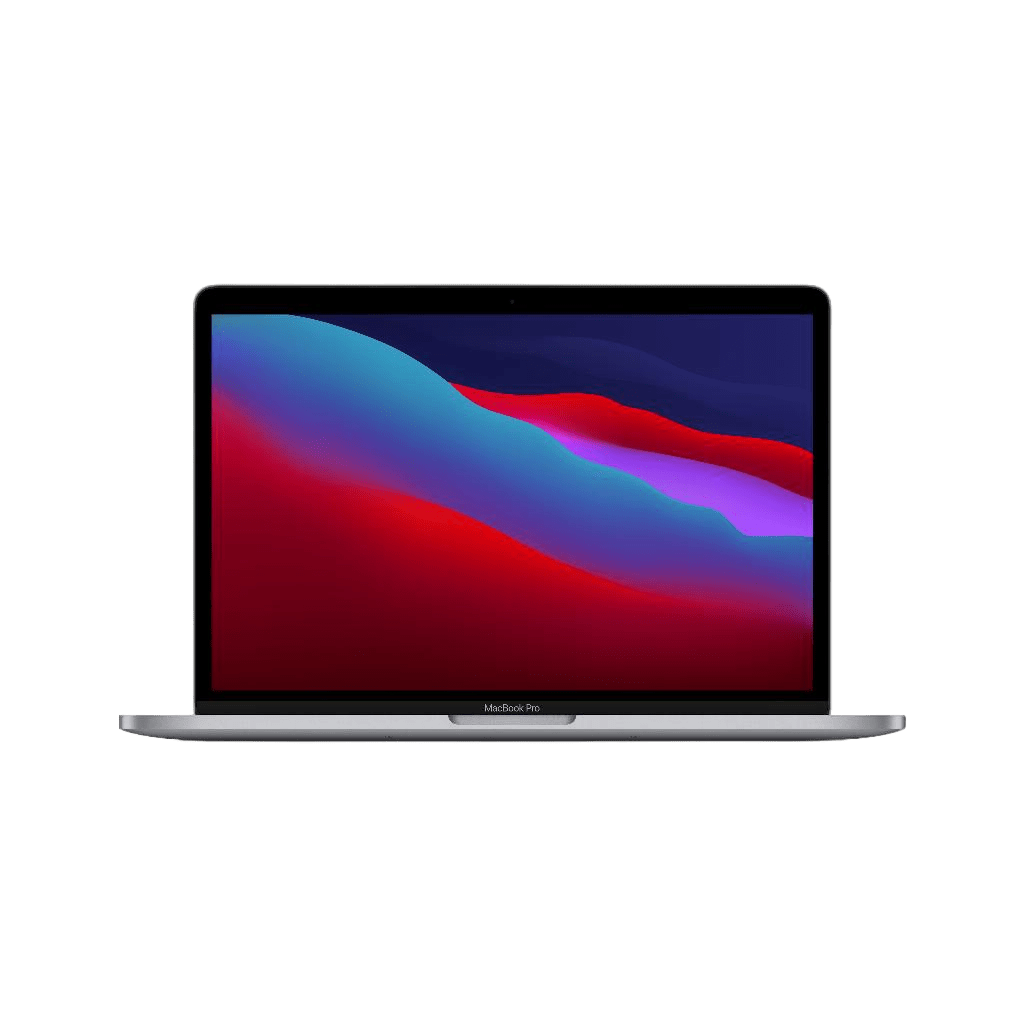
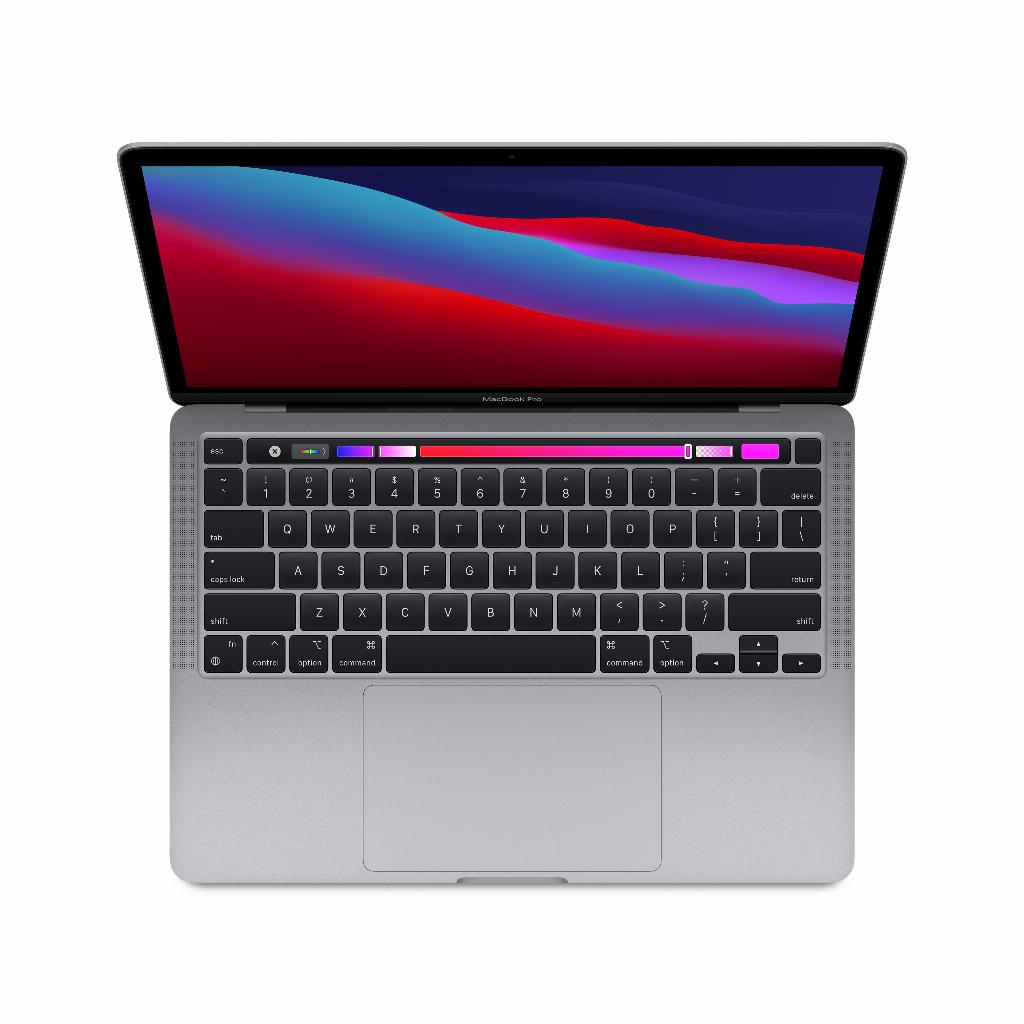
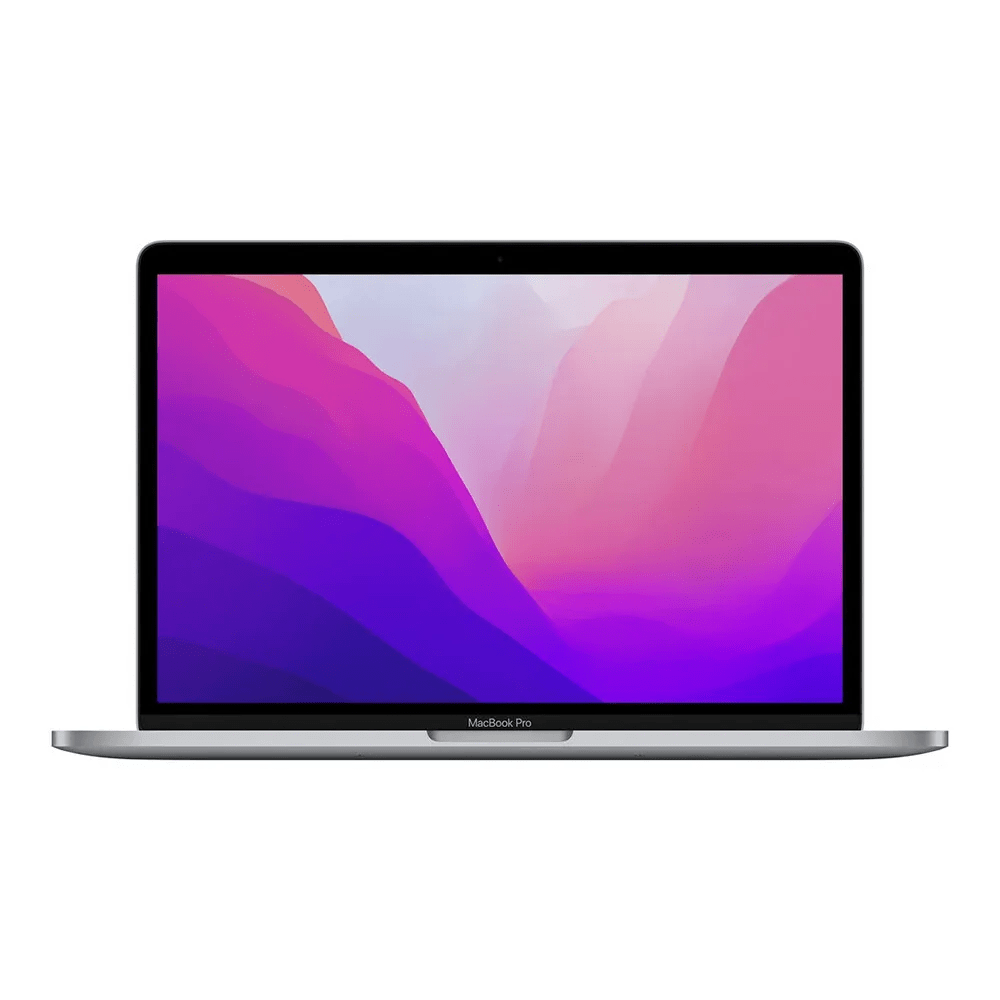
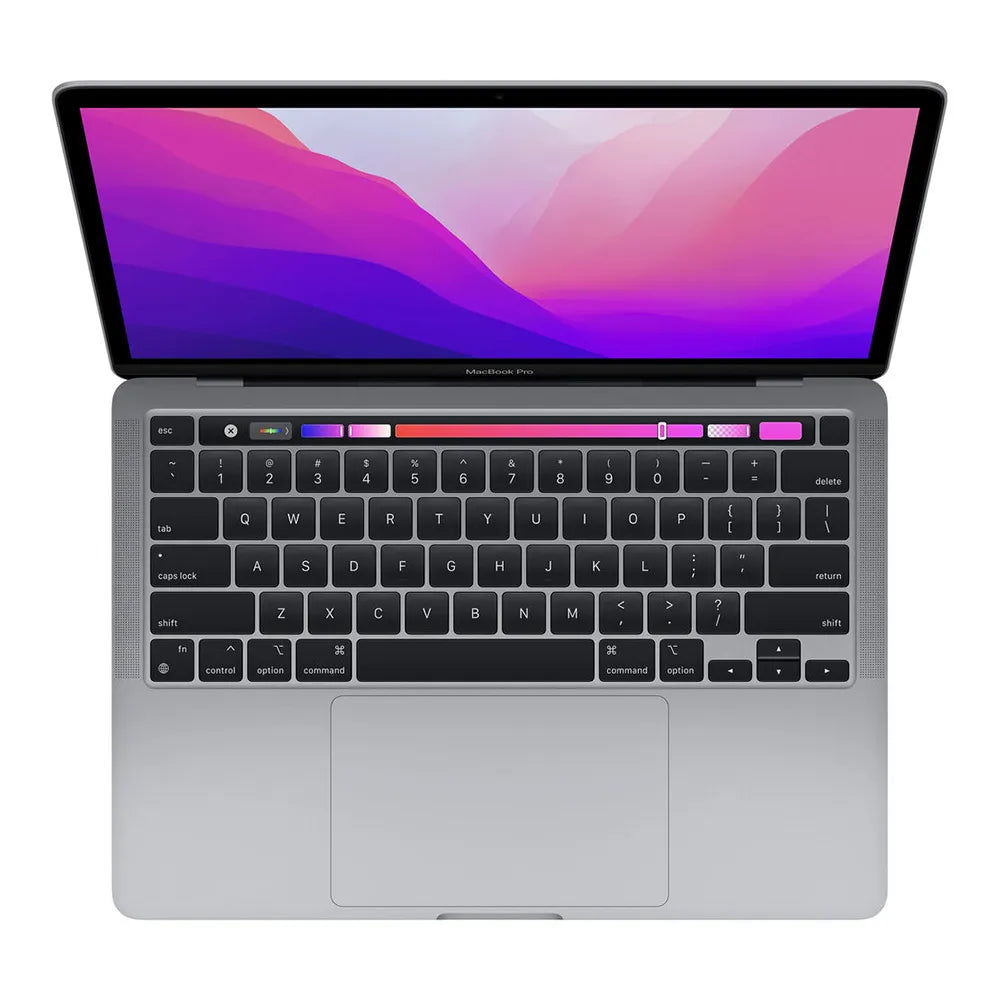
- Refurbished MacBook collection - your central workstation with iCloud
The smart folder structure that saves time
The biggest problem with iCloud Drive? Most users dump everything into one big digital mess. So start with a logical folder structure. Create main folders for "Work," "Personal," and "Archive." Within these categories, you can further refine them with project folders or years.
A practical tip: use emojis in your folder names. A 📊 for spreadsheets, 📷 for photos, or 🎯 for ongoing projects. This works surprisingly well because your eye recognizes these symbols faster than text. Plus, these emojis sync perfectly across all your devices.
Arrange offline access to important files
You don't always have a stable internet connection. Fortunately, you can mark specific files for offline use. Swipe left on a file in the Files app on your iPhone or iPad and tap the download icon. These documents will always be available, even on a plane or during a train ride through the Veluwe.
Note: Offline files take up local storage space. Therefore, regularly check which files you really need offline. A good rule of thumb: only download active projects and essential documents.
Collaborate without hassle
Sharing files via iCloud Drive works differently than you might be used to. Instead of sending files as attachments, you share a link. This has major advantages: the recipient always has the latest version, and your mailbox doesn't overflow.
To share folders with colleagues or family: create a shared folder and invite people using their Apple ID. Everyone can then add, edit, or delete files. Perfect for collaborative projects or sharing vacation photos with family.
Set up authorizations smartly
When sharing, you can choose between "view only" or "allow changes." For sensitive documents, you can also set an expiration date. The link will then only work for a week, for example. This prevents old links from lingering and giving you access to your files.
Desktop and document synchronization: a double-edged sword
macOS offers the option to sync your entire desktop and Documents folder with iCloud Drive. Convenient? Certainly. But beware: this feature eats up storage space. If your desktop is cluttered with large video files, your iCloud storage will quickly fill up.
A smarter approach: Create separate work folders in iCloud Drive for active projects. Use your local Documents folder for temporary files you don't need to sync. This way, you maintain control over what's stored in the cloud.
Version history: your salvation in case of errors
Few people know that iCloud Drive automatically saves previous versions of your files. Accidentally overwritten? Don't panic. Open the file on iCloud.com, click the gear icon, and choose "Browse All Versions." You can go back up to 30 days.
This feature works best with iWork documents (Pages, Numbers, Keynote), but other file types are also supported. A lifesaver if you accidentally delete important changes.
Optimize storage space without compromise
The free 5GB fills up quickly. Before you upgrade, check what's causing the problem. Go to Settings > [your name] > iCloud > Manage Account Storage. Here you'll see exactly which apps and files are taking up the most space.
Often, it's old iPhone backups or full-resolution photos that take up space. Consider creating local iPhone backups on your Mac or PC. For photos, you can select "Optimize iPhone Storage"—then only thumbnails are stored locally.
Smart alternatives for large files
iCloud Drive isn't always ideal for video files or large design projects. It's best to use specialized services like WeTransfer for one-time transfers. Only store final or compressed versions in iCloud Drive.
Troubleshooting: When synchronization fails
Sometimes iCloud Drive isn't working. Files won't sync or won't appear on other devices. First step: make sure you're signed in with the same Apple ID on all your devices. Sounds simple, but this is the most common cause.
If that doesn't help, force a sync by logging out of iCloud and back in. On a Mac, you can also open Finder, go to iCloud Drive, and press Command+R to refresh. On iOS, quit the Files app completely (swipe up and dismiss it) and reopen it.
For persistent problems: check your internet connection and whether there are any iOS or macOS updates available. Apple regularly fixes syncing issues with system updates.
Get the most out of iCloud Drive
iCloud Drive is more than just a digital storage vault—if you use it wisely. With a well-designed folder structure, selective offline syncing, and the right sharing settings, you'll get the most out of your Apple devices . Version history saves you from errors, while consciously managing storage space prevents unnecessary upgrades.
Most importantly: start simple . Choose a logical structure first, experiment with the sharing features, and optimize as you go. This way, you'll transform iCloud Drive from a passive storage space into an active part of your daily workflow.